
Reduce Delay in Your Guitar Monitoring Setup
Mute the strings lightly and pick four short notes. If the first sound of each note lands late, investigate monitoring latency. If the attack is prompt but repeats follow, turn down the tone’s delay effect. If you hear two attacks, check for two monitoring paths before adjusting anything else.
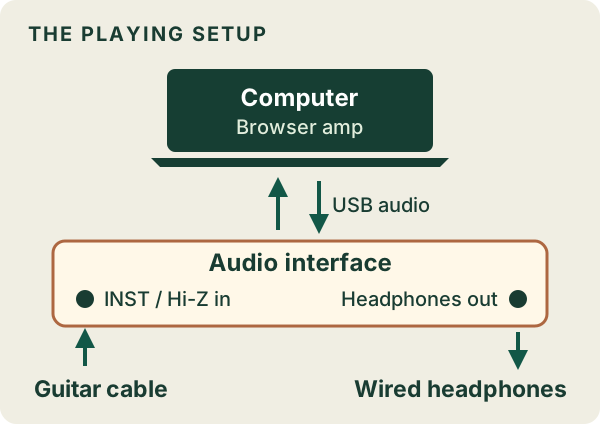
Connect wired headphones to the interface, choose Start playing and pick four muted notes on your own guitar. The recorded demo can check playback, but measuring the feel of your pick requires live input.
Which kind of delay are you hearing?
| What you hear | First comparison |
|---|---|
| A single note starts after the pick stroke. | Use wired headphones and listen to the browser return alone. Does the first attack feel closer? |
| A prompt dry note plus a second, processed attack. | Reduce direct monitoring on the interface while keeping computer playback up. Does one attack disappear? |
| The note starts on time, then repeats or trails off. | Try a clean amp tone with delay and reverb off. Do the repeats disappear while the first attack stays put? |
Trace one listening path
Keep the headphones plugged into the interface. If you hear two attacks, turn the interface’s direct-input monitor down and play again. One remaining processed attack means both paths were audible. Silence means you had been hearing only the hardware input. Restore a comfortable level and check the browser return before changing buffers. Some interfaces label the two ends of a mix knob Input and Playback or USB.
The processed path goes from guitar to interface input, through the computer and amp simulation, then back to an output. Each buffering or wireless stage can add time. Direct monitoring takes a shorter path inside the interface, so the dry signal can feel immediate even if the browser return is late. Direct monitoring alone will not let you hear changes to the software amp.
Change one thing and play the same phrase
- Change the output first. If you are listening over Bluetooth, compare with wired headphones. In BrowserTones, open Audio settings and check Output Device. If the browser cannot select an output, use the system output setting. Make sure you actually hear audio in the headphones you are comparing.
- Remove the second signal. On the interface, turn down direct monitoring while leaving computer playback audible. Play the same muted notes and compare their first attack at a comfortable volume.
- Take echoes out of the test. In the player, enter
Clean amp, no delay, no reverb
and choose Apply prompt. Keep the same guitar, input, output, tempo and monitoring mix. A shorter effects tail is a useful finding, but it is not evidence that hardware latency fell. - Check for interruptions separately. Crackles and missing notes are different from a steady timing offset. Close other audio-intensive programs and retest. Follow the interface manufacturer’s driver advice if problems persist.
Should you change the buffer size?
In a DAW, smaller buffers can lower monitoring latency at the cost of more processing pressure and possible dropouts. Ableton’s latency guide explains that trade-off for Live. Its buffer setting is not a BrowserTones control. If your driver exposes a buffer control, note the original setting before testing; whether the browser uses that change depends on the system.
Note the interface, OS, browser, input and output, and write down which single change helped. This comparison tells you how the rig feels; it does not measure round-trip milliseconds. BrowserTones does not promise a fixed latency on your hardware. If the processed sound disappears entirely, use the no-sound checks; for cabling, see Connect your guitar to a computer.
Test my timing in BrowserTones
By BrowserTones · Updated