
Connect Your Guitar to a Computer and Start Playing
Connect your electric guitar to an audio interface's instrument input, connect the interface to your computer, and plug wired headphones into the interface. Open an amp simulator, select the interface for input and output, and start audio. You can then hear your guitar through the software.
On the opening screen choose Start playing. In Audio settings, check which device receives the guitar and which feeds the headphones.
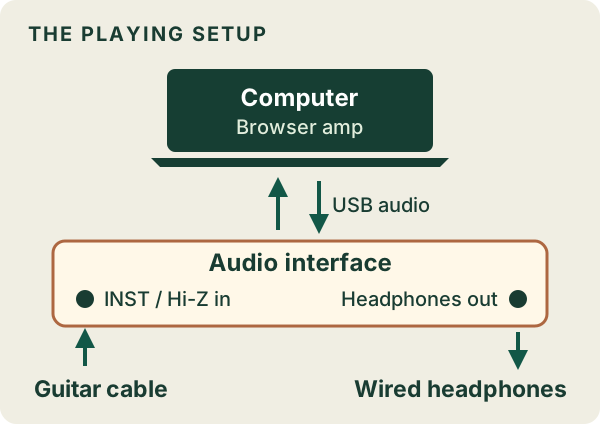
This guide takes you from the cable connection to a processed guitar sound using the free BrowserTones browser player. You do not need a digital audio workstation (DAW), or recording program, for this playing setup.
What you need
- An electric guitar and a ¼-inch / 6.35 mm instrument cable.
- An audio interface with an instrument input, often labelled INST or Hi-Z, and a headphone output.
- A computer and the interface's supported USB or other connection cable.
- Wired headphones, including a headphone adapter if the plug does not fit your interface.
- A compatible browser. BrowserTones recommends Chrome and headphones as a starting point.
If you already own a USB-equipped amp or effects unit, check its manual for USB audio before buying an interface. The alternatives table below explains what counts.
Powered speakers can replace the headphones once the output is set up. If you already have an interface, start with its headphone output. You can test the free browser player with a recorded guitar before connecting any hardware.
1. Connect the guitar and interface
Connect the interface to your computer and follow the manufacturer's setup instructions. Install its driver or control software if required for your operating system. The browser amp runs without installing amp software, but your interface may still need a driver.
Plug the guitar cable into the interface's instrument input and select Instrument, INST or Hi-Z mode where provided. Use the input identified in your interface manual; input numbers differ between models. Focusrite explains the difference between microphone, line and instrument inputs.
Start with headphone volume low. Turn up the guitar's volume control, play a few notes, and watch the interface's signal indicator if it has one. If it shows no signal, check the guitar controls, cable and input before changing the amp software.
2. Set input gain and headphone output
Play as firmly as you expect to play during the session. Adjust the interface's input gain so it receives a usable signal without indicating clipping. Follow your interface's meter guidance rather than copying a gain-knob position from another player's setup.
Input gain sets the level entering the computer. Headphone volume sets how loudly you hear the result. Turning the headphones down does not fix an overloaded input. Focusrite's input-gain guide illustrates the distinction.
For this setup, both the headphone plug and software output must point to the interface. If the computer plays through its built-in speakers instead, your interface headphones will not receive that output.
3. Select your interface in BrowserTones
Open BrowserTones and choose Start playing. Allow audio-input access when the browser asks. It may call this “microphone” access even when your input comes from a guitar interface.
Find Audio settings in the player. Expand it if the device names are hidden.
- Under Input Device, select your audio interface. Avoid the laptop's built-in microphone for this wired guitar setup.
- Under Output Device, select the interface connected to your headphones when that choice is available.
- If the browser cannot offer an output choice, check your computer's sound-output setting and select the interface there.

Device names can become available after input permission is granted. If access was blocked earlier, use Chrome's microphone settings to review the site's permission and input device. Check operating-system permission too if Chrome still cannot access audio.
Selecting an interface is separate from choosing which physical input carries the guitar. For an interface with several inputs, check its routing or mixer if the browser receives silence. Available channels depend on the interface and browser.
4. Check that you hear the processed guitar
Play a single chord through a clean setting. Apply a noticeably different amp tone and play the same chord again. If its character changes in your headphones, you are hearing the software. If it stays dry even though the interface meter moves, check direct monitoring next.
If the interface's direct monitoring is active, it can send the dry guitar straight to your headphones. To hear the browser amp on its own, turn off or reduce that direct-input monitor path while keeping the computer's playback audible. The control may be a switch, a mix knob or a setting in the interface's mixer. Focusrite's monitoring explanation shows why direct and software monitoring sound different.
Your first sound check is complete when the interface receives your playing, the browser amp changes what you hear, and the processed sound reaches the intended headphones at a comfortable level.
Tune after the sound path works
To tune the guitar you just connected, open Tuner inside the player and choose Start tuning. It uses the player’s selected input. Pick Standard or Drop D for the string targets. You can tap a string to hear its reference note before granting input access. The tuner in this article’s header uses the browser’s default input, so use the player tuner when you need a particular interface.
Return to the player and start its audio if needed. A working tuner confirms a tuning-input path; it does not by itself prove that amp processing and headphone output are working.
To check playback without a guitar, choose Try without a guitar on the opening screen. A recorded guitar part plays. Pause preview stops the loop temporarily. To use your interface from that screen, choose Play with my guitar, allow input access and play one chord.
A Scarlett 2i2 example
On the 4th-generation Scarlett 2i2, connect the guitar to a front jack, select that input and enable Inst. Plug wired headphones into the front headphone socket. For the software-amp check, cycle Direct to off (white) and leave the headphone level up. The green mono and stereo modes add the direct input. If switching Direct off leaves silence, the next thing to check is the computer return. These control names come from the Focusrite hardware guide.
If there is no sound, distortion or delay
| What you notice | Check next |
|---|---|
| The interface receives no guitar signal | Guitar volume, cable, instrument input and input gain. |
| The interface receives signal, but BrowserTones is silent | Input permission, Input Device, interface channel routing, player audio state and Output Device. |
| You hear only the dry guitar, or two overlapping sounds | Reduce direct monitoring and check that the computer's processed playback remains audible. |
| A clean sound distorts even at low headphone volume | Check for clipping at the interface input before changing the amp's gain. |
| The first sound arrives noticeably after you pick | Use wired headphones, check input/output routing and close other demanding applications. Test a simple tone. |
| The first note is prompt, followed by repeats | Check the tone's delay effect. Repeats are different from input-to-output latency. |
Follow the symptom: Fix No Guitar Sound in Your Browser if the rig is silent, or Reduce Delay in Your Guitar Monitoring Setup if the first note arrives late.
Bluetooth listening can add delay; Ableton explains why wired audio helps with latency. Follow your interface manufacturer's driver advice. A buffer-size control in a DAW is not automatically a setting you can change in BrowserTones. Actual latency depends on the computer, interface, browser and routing.
For help, include your interface model, operating system, browser, input and output, and the first step where the signal stops. The BrowserTones FAQ covers current product and setup questions.
Can you connect a guitar without a separate audio interface?
Check the equipment you already own before buying an interface:
| Equipment | What to check |
|---|---|
| A guitar amp or multi-effects unit with USB | Its manual must explicitly support USB audio. A USB port may serve other purposes. Check the available audio channels, drivers and headphone routing. |
| A guitar-to-USB cable | A cable with audio conversion built in acts as an interface. Check how you will hear the output; it may not have a headphone socket. |
| A plain guitar-jack-to-small-jack adapter | Changing the plug does not turn a laptop microphone socket into a suitable guitar instrument input. |
Manufacturers document these differences: BOSS describes USB audio recording on Katana, and Hosa documents a guitar-to-USB interface cable. These illustrate connection types, not a BrowserTones compatibility list.
Does the same connection work for bass?
An electric bass can also connect to a suitable instrument input. Focusrite's bass recording guide describes this connection. Set the input gain for your bass and choose a bass-appropriate sound. BrowserTones' published setup guidance includes bass; a particular bass, interface and browser combination still needs its own playing check.
How do I keep a recording of what I played?
The current BrowserTones browser player and public sound sharing are free, with no account or amp software installation required. This is the free starting point of BrowserTones' freemium offering. A shared sound link contains settings, not a recording of your performance.
To record guitar, use recording software and a suitable audio route. A DAW can record your interface input and process the track with a compatible amp plugin. Recording the browser's processed output requires a separate routing setup; this connection guide gets you playing.
A paid BrowserTones VST for use inside a compatible DAW is in development. For a recording you need today, use the recording or routing options above.
For the differences between browser amps, standalone apps and plugins, read What Is an Amp Sim?.
Connect my guitar in BrowserTones
By BrowserTones · Updated